
Assigning Permissions to Users
This section describes how to assign permissions on Sentinel Pulse app to various user personas. For an understanding of Sentinel Pulse user personas, refer to Sentinel Pulse User Guide.
By default, only System Administrator can view Accounts and Account Mapping page. An Operations User must have access to the Accounts in order to be able to map customer accounts in Sentinel Pulse. There are several ways to create a new permission set for specific users through the Salesforce org.
User Personas—Licenses and Permission Sets
The following table summarizes the required CRM Analytics licenses, permission sets, and responsibilities for each user persona:
| Persona | Required CRM Analytics License | Required Permission Sets | Responsibilities |
|---|---|---|---|
| System Administrator |
CRM Analytics Platform |
CRM Analytics Platform Admin | Install and configure Sentinel Pulse, manage analytics configuration, and administer users |
| Operations User | CRM Analytics Platform |
CRM Analytics Platform User and Sentinel Pulse Operations with Accounts Access |
Map Salesforce accounts to customers in Sentinel EMS and maintain accurate engagement data |
| Sales / Customer Success User |
Analytics View Only User, or CRM Analytics Platform, or CRM Analytics Plus |
Analytics View Only Embedded App and Sentinel Sales User |
View dashboards in CRM Analytics to monitor customer engagement and product usage |
The following section explains how to create a new permission set for the Sentinel Pulse Operations user based on a permission set provided by the Sentinel Pulse app.
Permission Set with Accounts Access
To Create a Permission Set with Accounts Access:
1.Click the Setup icon in the top-right corner, and then select Setup.
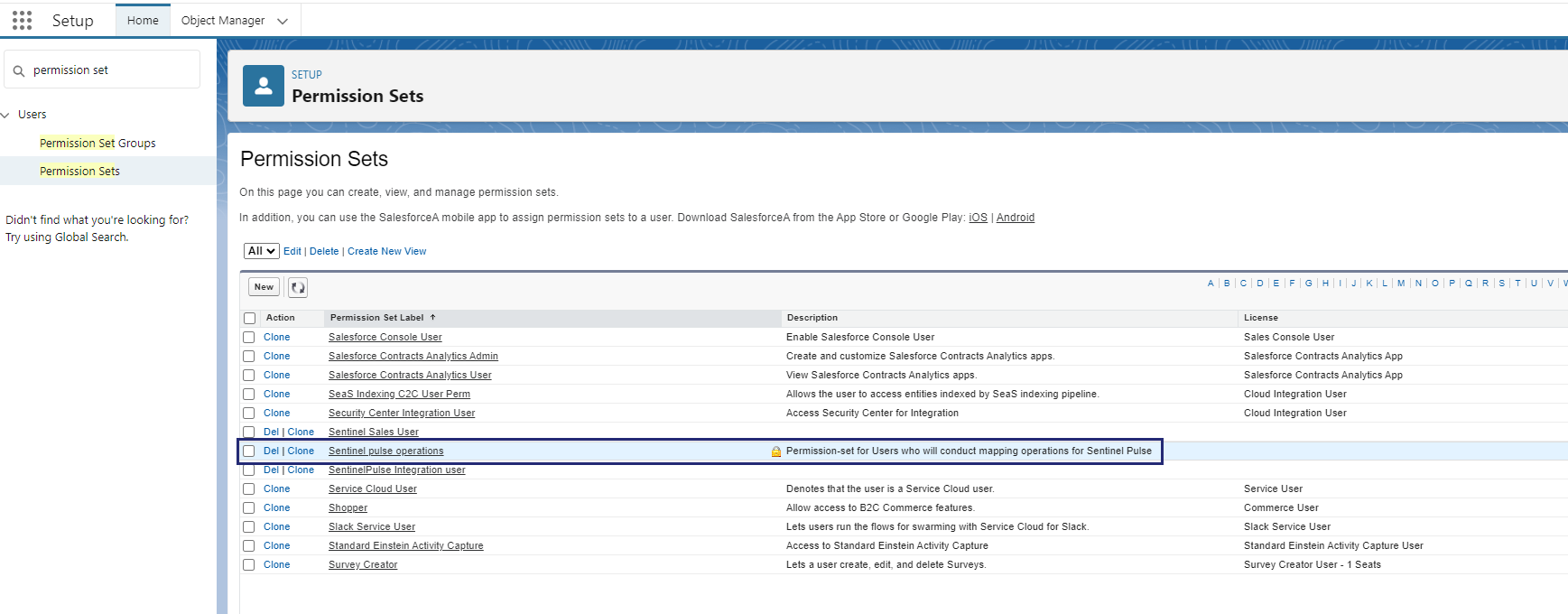
2.In the Quick Find box, type Permission Sets and click on it.
3.Click Sentinel pulse operations.
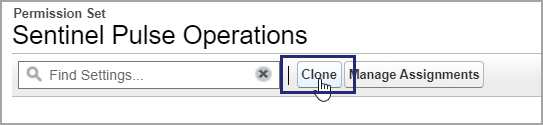
4.In the Permission Set of Sentinel Pulse Operations, click Clone to clone this permission set.
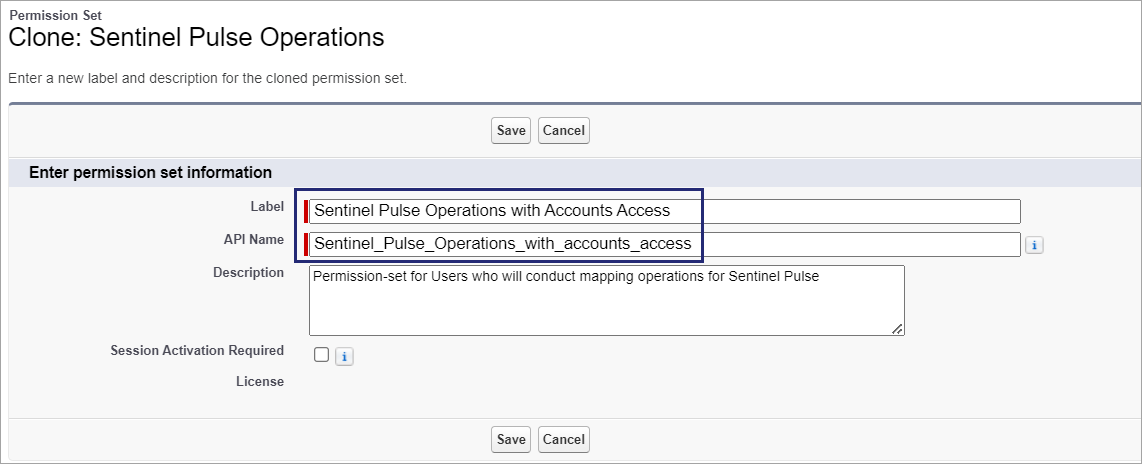
5.Update the Label as "Sentinel Pulse Operations with Accounts Access" and the API Name as "Sentinel_pulse_operations_with_accounts_access", as shown in the following image. Click Save.
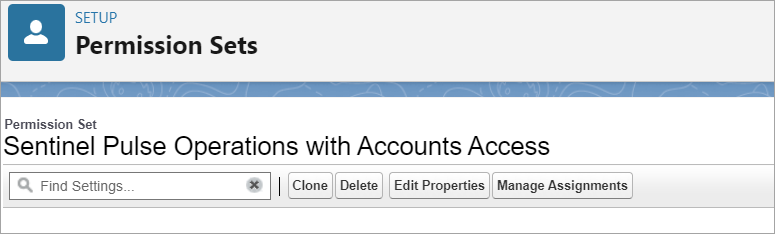
A new permission set is created.
6.Click Object Settings.
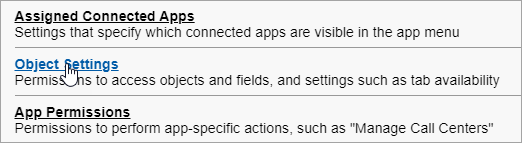
7.Click Accounts.

8.Click Edit and select Read and View All.
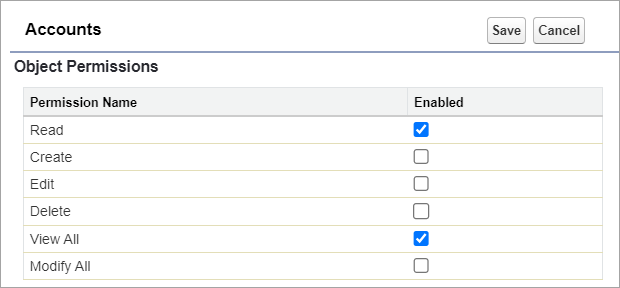
NOTE In this, only Read and View All are selected. However, you can select the permissions based on your requirement.
9.Click Save. The required permission set is created.
You must assign Permission Set with Accounts Access to the users performing the customer account mapping.
To Assign Permissions to Users:
1.Click the Setup icon in the top-right corner, and then select Setup.
2.In the Quick Find box, type Users and click on it.
3.Click the name of the user to whom you want to assign the permissions with accounts access.
4.In the Permission Set Assignments related list, click Edit Assignments.
>For a Sales and Customer Success User, look for any of the following:
•Analytics View Only User, or
•CRM Analytics Platform User
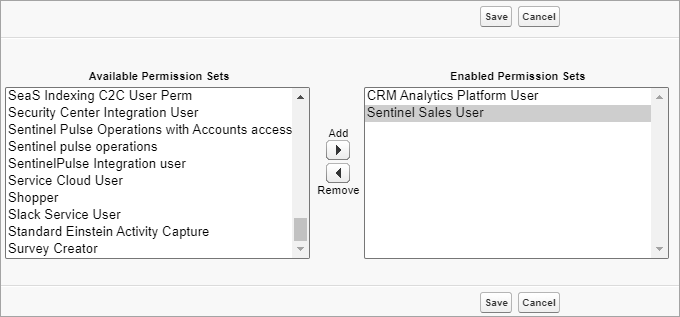
>For Operations User, look for: CRM Analytics Platform User. Also, select the permission set you created for the Operations User as described in Permission Set with Accounts Access.
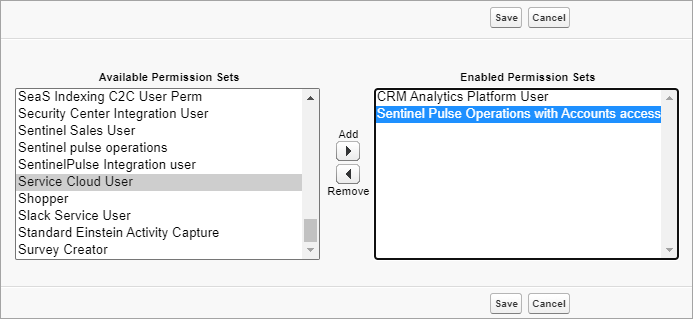
5.Click Save.